For show producers and screen operators
 OnAirHQ
Presenter
Clean slides. One laptop.
Send PDFs to the hall without windows or menus. Switch decks fast, load the next presentation mid-show, and give the speaker a confidence monitor with an automatic timer — all from one laptop. Two modes: a simple one-screen show or the full director’s console.
A workflow that can otherwise take 2–3 machines, capture cards and complex software, brought together on your show laptop.
At the desk
Keep the next cue in your hands.
Clean output to the hall
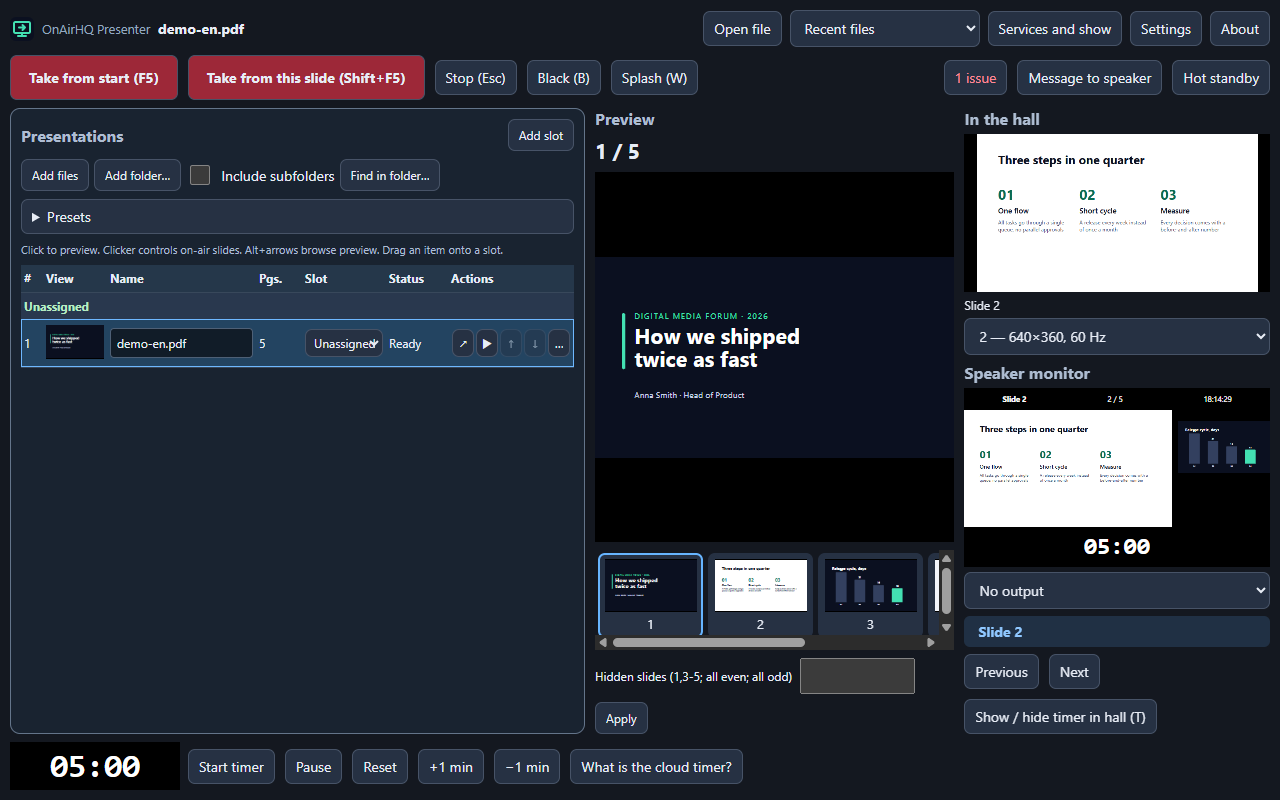
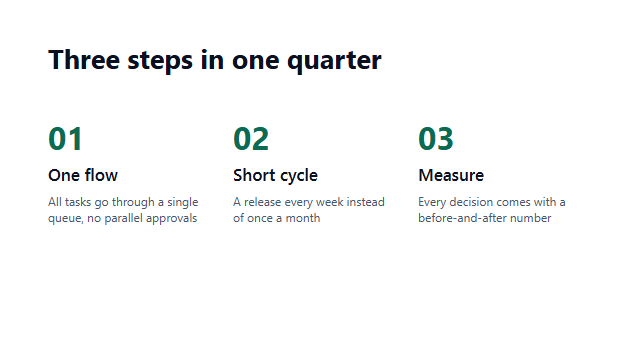
Show PDFs full screen, without windows or menus. Choose the hall screen and the speaker confidence monitor in the app.
Switch decks, follow the running order
Arrange presentations in slots. Use clicker keys and Ctrl+PageDown / Ctrl+PageUp to move quickly between decks.
Take new files during the show
Load presentations from a USB stick while the current deck is on air. Files are copied into a dated folder.
Give the speaker the next slide
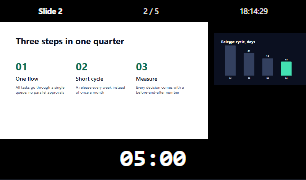
Current slide, next slide, clock and timer. The block timer starts automatically when a deck goes live. Connect OnAirHQ Timer by link or work fully offline. Speaker view in the main window: F6 turns it on, Esc returns to the desk without stopping the show.
Handle the space between talks
Use a black screen, splash or intermission image, and send a message to the speaker.
Keep control close, and a backup ready
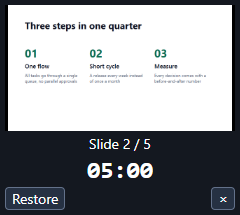
A mini window stays available when the main window is minimized. Set up hot standby on a second laptop on the same network.
Put media in the running order
Include video and audio. Play PPTX presentations with animations through an installed copy of Microsoft PowerPoint.
Take the show log into the edit
Export the show log and markers for Premiere Pro and DaVinci Resolve, plus YouTube chapters.
The desk, the hall, the speaker.
Screenshots from the English edition, using a demo PDF.

What you need
- Windows 10 or Windows 11, 64-bit.
- For PPTX with animations: Microsoft PowerPoint 2016 or later, installed on the laptop.
Set up before the show
Download and run the installer
The installer has no digital signature. Windows SmartScreen will show “Unknown publisher”. To continue, choose “More info”, then “Run anyway”.
Unknown publisher → More info → Run anyway
Choose screens and load your decks
Select the hall output and speaker monitor in the app. Add presentations and arrange slots in the running order.
Set the block timer
Use the timer fully offline or connect OnAirHQ Timer by link. The countdown starts when the deck goes live. OnAirHQ Timer ↗
Share your feedback
We would love your feedback and ideas. In the app, open About → Suggest an idea, or email hello@onairhq.io.
Download OnAirHQ Presenter
For Windows 10/11, 64-bit. The installer is unsigned; see the SmartScreen steps above.
Free
We are polishing the first public version. Write to hello@onairhq.io